
This morning a friend asked me on WhatsApp: “Do you have any SEO checklist for WordPress to recommend to me?”. Have it I do, but it is in my head, I thought.
I could search for one on the internet and send it to him, or I could write down what I use (which until now was only in my head) and send it via WhatsApp myself. But then I thought: this could be a good content piece for the blog and other people must have the same question. So I decided to write this text:
WordPress SEO checklist for your site
Here I will write down what my 11 years of experience working with SEO and over 20 building sites has led me to group together:
- How to create a new WordPress site that is already optimized?
- How to create a WordPress blog that is already optimized?
I will divide this task list for SEO with the optimizations into 6 areas:
- Choosing hosting and servers
- Making basic configurations
- Selecting plugins
- Using visual editors
- Improvements in images, JavaScript, and CSS
- Keeping your WordPress updated
And as always, this post becomes outdated as WordPress receives updates, so if you see something that no longer makes sense, drop it in the comments so I can look into it and update it, ok?
How to create a new WordPress site that is already optimized?
The best way to have an optimized site is to build it from the start following SEO rules: a fast site, with well-written code and content semantically related to your business. So let us see how to create a new site in WordPress that makes search engines love it right away!
Hosting and servers
Choosing a good hosting service for your new site on WordPress nowadays is easier than ever. But there are a few things I recommend doing: selecting hosting providers that sell services within large infrastructures, such as Google, Amazon, and others. A current option is the hosting from WordPress itself, which is extremely optimized but comes at a higher price that can be somewhat prohibitive.
On this site, I use a hosting service that was recommended to me by friends, Closte. Note that I do not earn a single penny from this recommendation.
I chose it for a few reasons: automatic updates (which save me from worrying about updating servers), a very fast and secure server hosted on Google, ease of project installation (even for me, who am not a programmer), and automatic backups.
One detail about hosting: choose a provider located close to where your users are. Take my site, for example: I do not have clients outside of Brazil, so I do not need my site hosted abroad. Ask the hosting provider whether your site will be hosted in Brazil.
Basic configurations
Certain technologies are fundamental, but the basic WordPress configurations, after hosting it on a good service, are system settings. The first thing to do is configure the options.
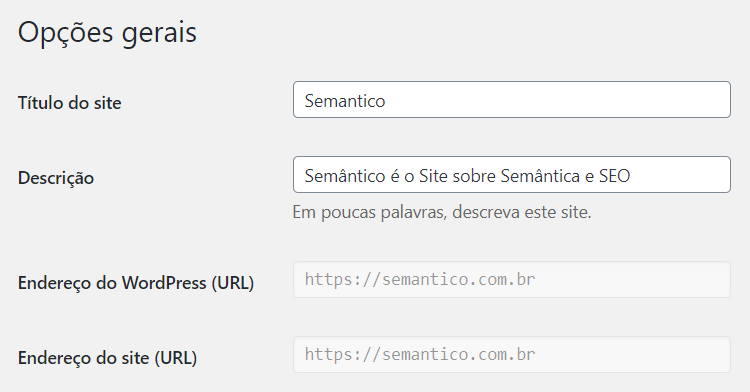
Go to general options and configure the site title and description. I have lost count of how many site owners hire me to find out why their site does not show up on Google when searched by brand name, and this is the reason. Put your business name in the Site Title and describe what you do in the description.
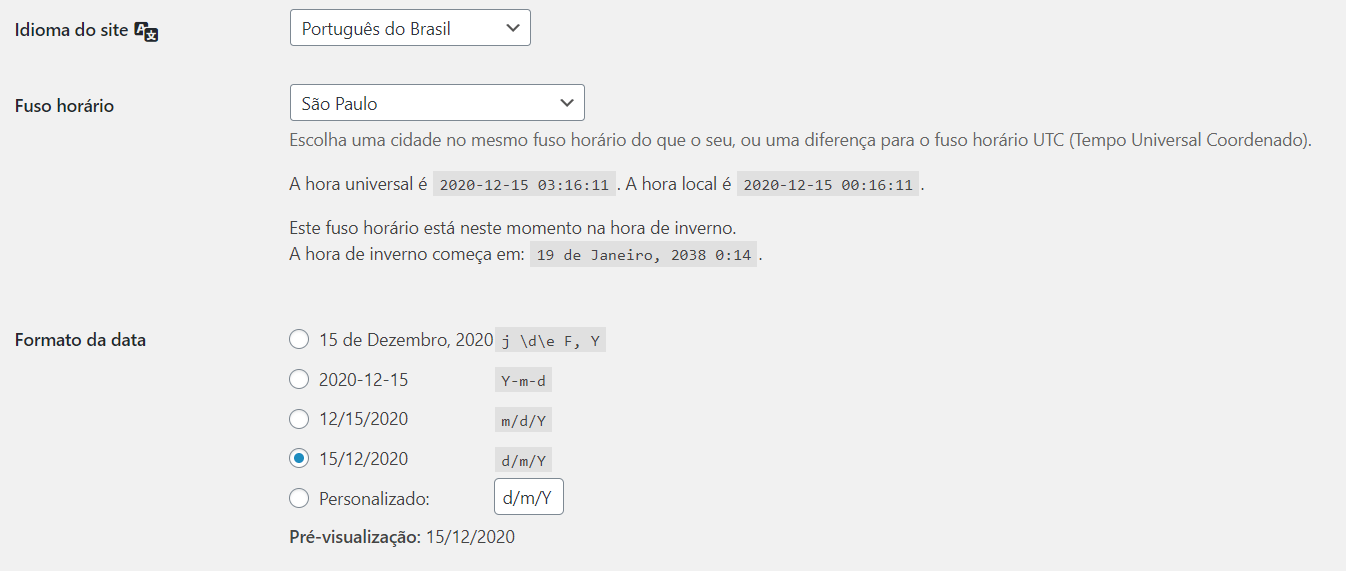
Do not forget to set your site’s language, time format, and other information below:
Pay attention to the reading options!
If you are going to use WordPress to set up a blog, choose the “your latest posts” option, but if you are going to build a complete site, choose a page you created to be its home. In the image you can see that I use AMP (Google’s fast pages standard), I will talk about that in the plugins list.
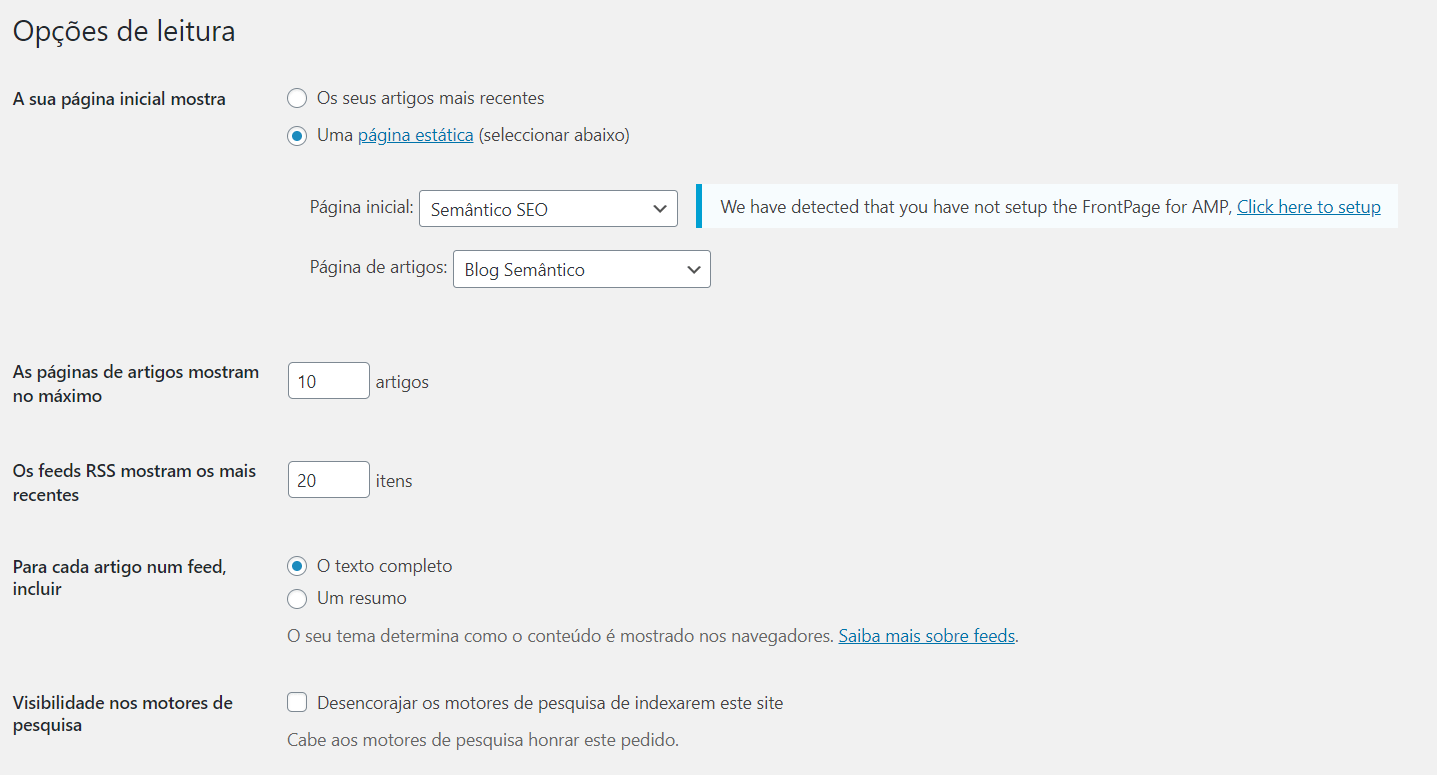
Even when choosing a static page, you might want to have a blog on your site; for that, select a posts page. But the most fundamental item is “Search engine visibility“. When developers build a new site, they usually want search engines not to find it before it is ready, and for that, they check this item.
Yet they forget to uncheck it. And when the site launches, search engines cannot find it. Verify this.
The last tip I want to give you in the basic settings is about permalink options.
WordPress offers the possibility to create a customized WordPress URL structure, which is one of the platform’s strengths in achieving good results on search engines.
Creating a customized URL structure, besides improving the aesthetics and usability of your links, helps search engines better understand your content and your site.
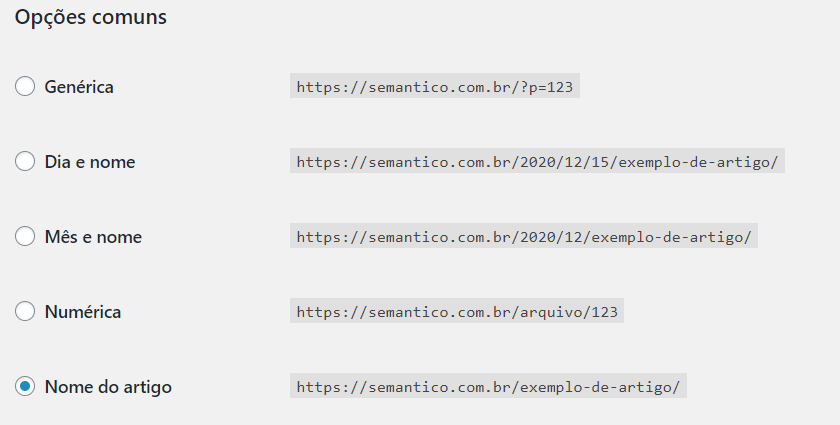
I always choose the model called “Post name”, because it gives me a very clean URL. However, news sites may prefer a URL that uses the news date. Always think about a simple and clean URL model; your users and search engines will thank you.
Plugins
The best WordPress SEO plugins
Below I will list the ones I use in my projects, on the sites I build:
- Akismet Anti-Spam: This plugin will protect your site against spam. Messages inside WordPress forms are the simplest way to spam your site, and this plugin spares you from that;
- Really Simple SSL: Having a site with HTTPS is a current security standard, and this lightweight plugin with zero configuration will make your site run with this security;
- Yoast SEO: Using a plugin to help with your site optimization is a good idea. There are other more advanced plugin options, but to start with, this one will meet your needs.
Is that all? For the basics, yes, but now let’s talk about plugins that will make your WordPress faster and lighter. Speed and usability are criteria for a site to rank in top positions.
An important part of building websites nowadays is the use of visual editors.
WordPress has become a platform that allows designers, creators, and all kinds of digital entrepreneurs to build their own site, even without any programming knowledge.
A lack of technical knowledge can cause some problems, such as poor security and slow speeds, but it makes developing your site much easier and significantly reduces costs when launching digital projects.
To make this possible, most of us use visual editors.
Visual editors
Currently, two editors compete in the market: DIVI and Elementor. This site (and all the others I have built) was created using DIVI, my platform of choice.
Both work in a similar way: they give you the ability to build your site visually, right on the page, as if you were using an image editing or web design program.
This makes our lives much easier, but it creates a problem: unnecessary JavaScript and CSS. That is why we will discuss how to optimize these files.
Improvements: images, JavaScript, and CSS
- LiteSpeed Cache: This plugin is exclusive to hosting providers that use LiteSpeed technology. If your server has this, install it. Each site requires a specific setup; to learn how to configure yours, check this post;
- Autoptimize: I use it alongside LiteSpeed to optimize CSS, JS, images, Google Fonts, and other elements.
Updates
One of the most complicated, tedious, and troublesome aspects of WordPress used to be updating plugins and WordPress itself. Anything could happen, even complete site crashes.
However, things are very different today. Most plugins can be set to update automatically.
Look at the image below:
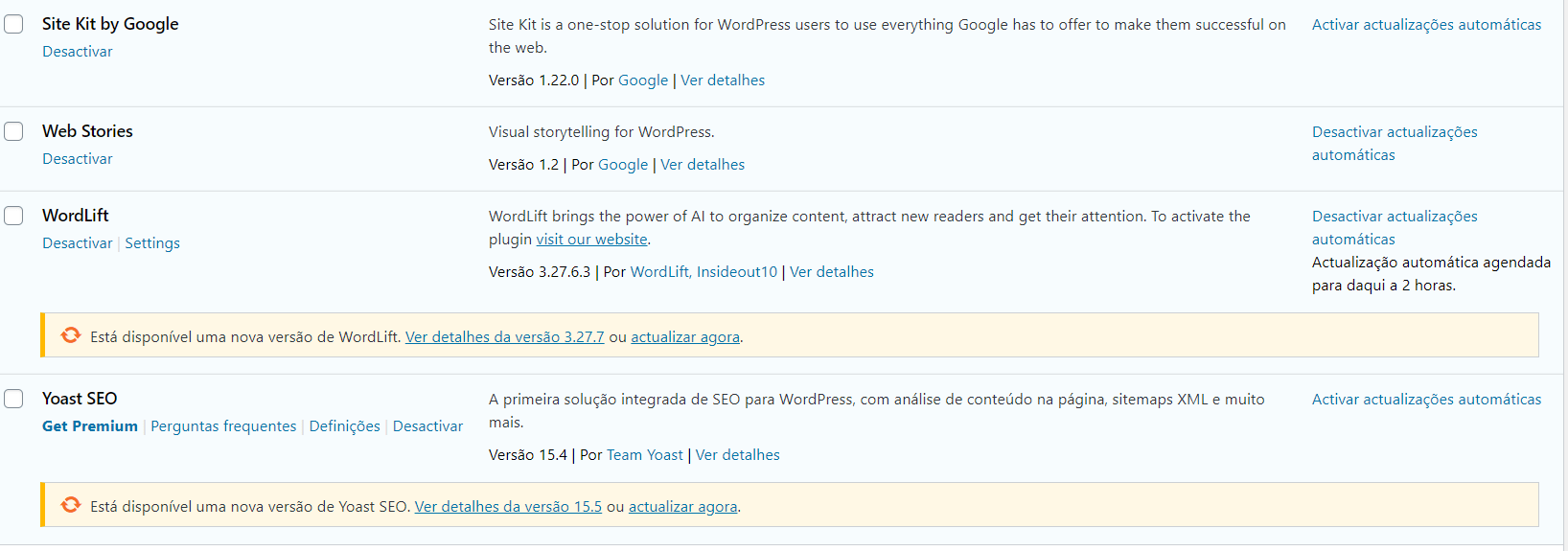
Some more critical ones must be updated manually. I generally keep speed optimization and cache plugins with auto-update turned off. Another category consists of plugins that I have been using for a short time and have not yet developed the trust gained from multiple trouble-free updates.
As you can see, some plugins are updated automatically, while others are not.
This leads to a very serious topic: backups! As I mentioned in the section on servers, I always choose servers that have a reliable automated backup system. Generally, those from the major players (Google, Amazon, etc.).
You can also use plugins to create backups. I have tested several, and the only one that has never given me any trouble is All-in-One WP Migration. The only detail, if you choose to install a backup plugin, is: buy its license!
Free plugins have a size limit for the generated backup file, and as your site grows, the higher the chance that you will run a backup and then not be able to use it because it exceeded the limit. Stay tuned!
How to create an already optimized WordPress blog?
So, are you enjoying this SEO checklist for WordPress that I prepared especially for you? So far, we have discussed how to launch a brand-new, already optimized site, but now let us think about sites that are already live.
Creating a project from scratch, with SEO in mind from the beginning, with the help of an SEO consultant is great, and I recommend doing so. But what if your site is already live? Is there nothing to be done?
Of course there is! You will need to fix a few things, but even with that, WordPress helps us get everything in top shape much more easily.
Hosting and servers
The first thing I recommend is running a speed check on your site. Access two tools, enter your site’s address in them, and see what happens.
The first one is GTmetrix.
It is an online tool that accesses your site and, following specific speed and usability criteria, gives you a score.
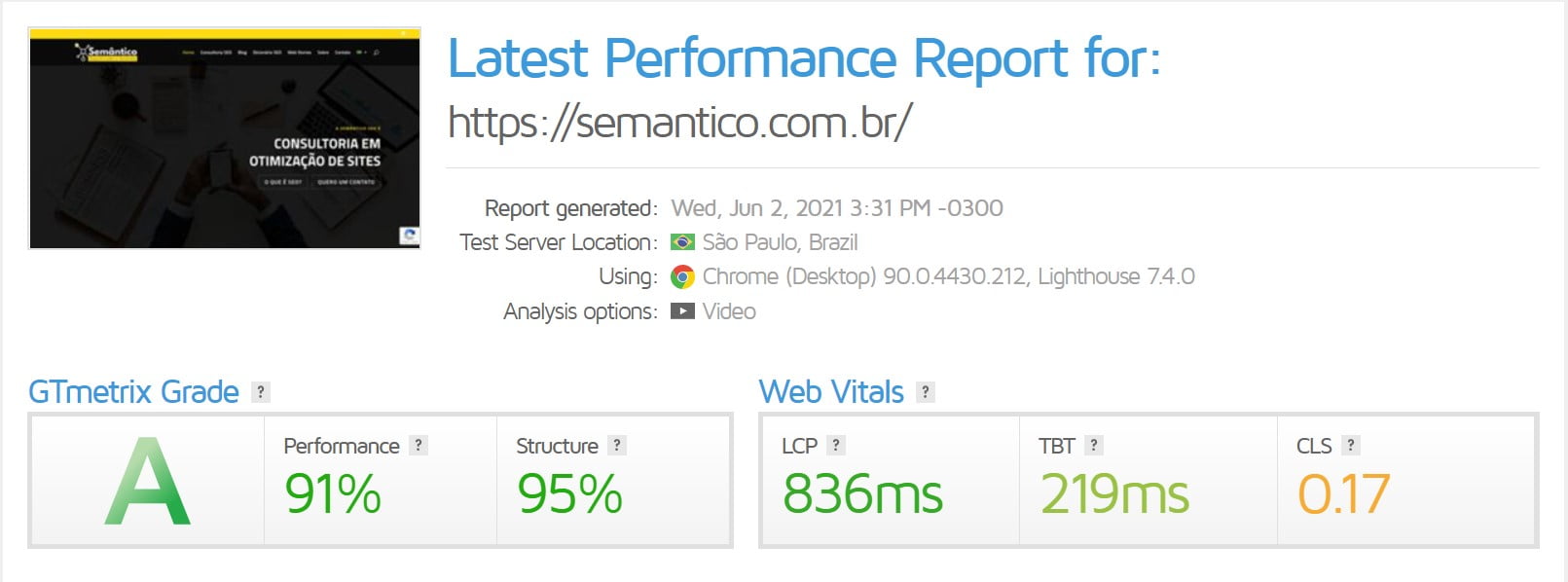
This tool is not perfect. It has trouble understanding sites hosted on servers that use a CDN, so do not take this report too seriously, but it serves as an indicator of how your hosting is performing regarding speed and stability.
Another tool I recommend is Google PageSpeed Insights.
There you can compare what needs to be improved on your site and optimize step by step.
Both GTmetrix and PageSpeed Insights use Google’s new recommendationsid=”urn:enhancement-151″ class=”textannotation”> called Web Vitals.
Neither tool is perfect, and you should know that you do not need to reach the highest scores to have a fast and stable site.
Basic settings
Go to the basic settings section for new sites and follow each item. The recommendations are the same. But be careful, especially if you are going to change the way your URLs are written by WordPress.
A bug that sometimes occurs when we change this setting below is that all URLs stop working.
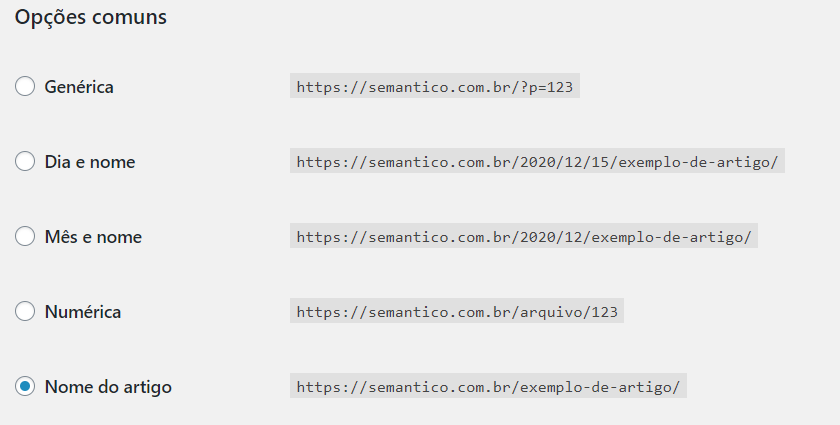
If this happens, click on any two other items (such as Day and name) and save. Then select “Post name” again and save once more.
Every time I encountered this issue, this resolved it. I never knew why, but it works.
Plugins
If your site is old, you probably already use a series of plugins. The advice I give you is: evaluate whether you really need this many plugins.
You saw that I use very few of them, despite always testing one or another.
My mindset is: I am always looking for plugins that can replace two or more plugins with high quality, and I keep an eye on new plugins that may be more optimized and lightweight than the old ones.
And I do not get dazzled by features. Your site has a goal, and you only need the plugins that are fundamental for it to reach that goal. The rest is just getting in your way.
Often, an excess of plugins is to blame for bugs and slowness on your site built on WordPress. A good practice is to analyze each of them (disabling them one by one and testing, or installing conflict analysis plugins, such as P3 – Plugin Performance Profiler)
Improvements: images, JavaScript, and CSS
Besides the cache plugins I mentioned in the new sites section, you will need extra help with your images.
A site that has been online for a while usually has many published images. And they are a constant source of slowdown issues, so: dedicate some time (or even money) to optimizing your old images.
A service I recommend is TinyPNG, which has a very good plugin called Compress JPEG & PNG images.
If your site does not have many images, you can use its free plan, which allows you to optimize 100 images per month. Now, if your site has much more than that, it is worth subscribing to one of their plans to optimize all your images at once.
It will also help you with the new images you upload to the site: the panda will keep all of them optimized instantly.
Visual editors
If you used a visual editor to build your site, you will not be able to switch between systems without recreating the visual design and the site from scratch.
The moment to optimize an old site can be the perfect time to abandon that old theme and redesign your site using one of the two editors I mentioned: Divi or Elementor.
You will have a site with a fresh look, featuring more modern and faster technologies.
Updates
The recommendations for updates are the same ones I already gave, plus one more:
Create an update plan for your WordPress site in case it is already old and outdated. A WordPress installation running a very old version has stability and security issues. Plugins without updates face the same problems and can serve as an entry point for security breaches.
But before rushing to update everything, make all the backups you can and, if possible, hire a specialist to help you. Your hosting provider may also be able to help you with this.
Conclusion
Creating an optimized site using WordPress is a great choice. Having a site on WordPress is a great choice. It is an increasingly mature, stable, and user-friendly system. Therefore: create your site!
I put together this WordPress SEO checklist to gather my experiences on the subject. Of course, it is not an exhaustive list nor does it cover every single topic, but in my view, it contains everything you need to have a site created (or rebuilt) following SEO best practices.
SEO spreadsheet
I am sharing here my spreadsheet “SEO 2021 checklist” that I use in my projects and constantly update.
It is populated with the
Execute the entire Semantic SEO process using tools designed, developed, tested, and used daily by those who practice Semantic SEO!
Pesquisador em Ciência da Informação, especialista em SEO Semântico e autor do livro "SEO Semântico: Fluxo de Trabalho Semântico". Lidera as pesquisas da Semântico SEO em Porto Alegre focadas na formalização de dados e arquiteturas GraphRAG.
Semantic Suite 2.0

Alexander Rodrigues Silva